
These experts helped us to
create our product content:

Upserve Review
Upserve Payments is the official payment division of the company, but Upserve's website references compatibility with other processing companies.
What sets Upserve apart from other POS solutions is its focus on analytics. It bills itself as a restaurant management assistant, providing you with the data and insights you need to run your business effectively. In this Upserve review, we'll go over the features, costs, and more. Additionally, Upserve boasts 99.9% uptime, though it does offer an offline mode just in case.
What You’ll Need
In order to use Upserve to take credit cards at your restaurant, you’ll need the software and a merchant account with Upserve Payments (a registered ISO of Wells Fargo) or a compatible credit card processing company. While Upserve allows you to use other payment processors for a fee, it pushes its own integrated processing solution. In some cases, certain Upserve reports may not be available if you use an external processor.
You’ll also need compatible hardware. The company offers a mobile app, which works with both iPads and Android devices.
Upserve Features
Since it is specifically designed for restaurants and hospitality, Upserve’s features focus on what restaurants need. Features include a customer database and loyalty program, a shift prep function, menu analytics, server performance measurement, reputation evaluation, and voided transaction or comp tracking.
Additionally, it includes features you'd expect from a restaurant-focused POS system, such as check-splitting, customizable dining room layouts, and integration with delivery apps such as Grubhub. Since Upserve boasts a lot of functions, let's split them by POS functions and management / back office functions.
POS Functions
Within the POS system, Upserve offers all the features you'd expect for order entry and guest management, plus additional options to provide messages to staff and ensure smooth operation. If you have any issues with the system, you can even access Upserve support through a live chat feature built in to the POS system.
Order Entry
Upserve's order entry screens are intuitive, allowing staff to quickly ring in items by diner. Additionally, you can set modifiers and prompt servers to enter all of the necessary information. For example, if a server enters a pizza, they can be prompted to add toppings.
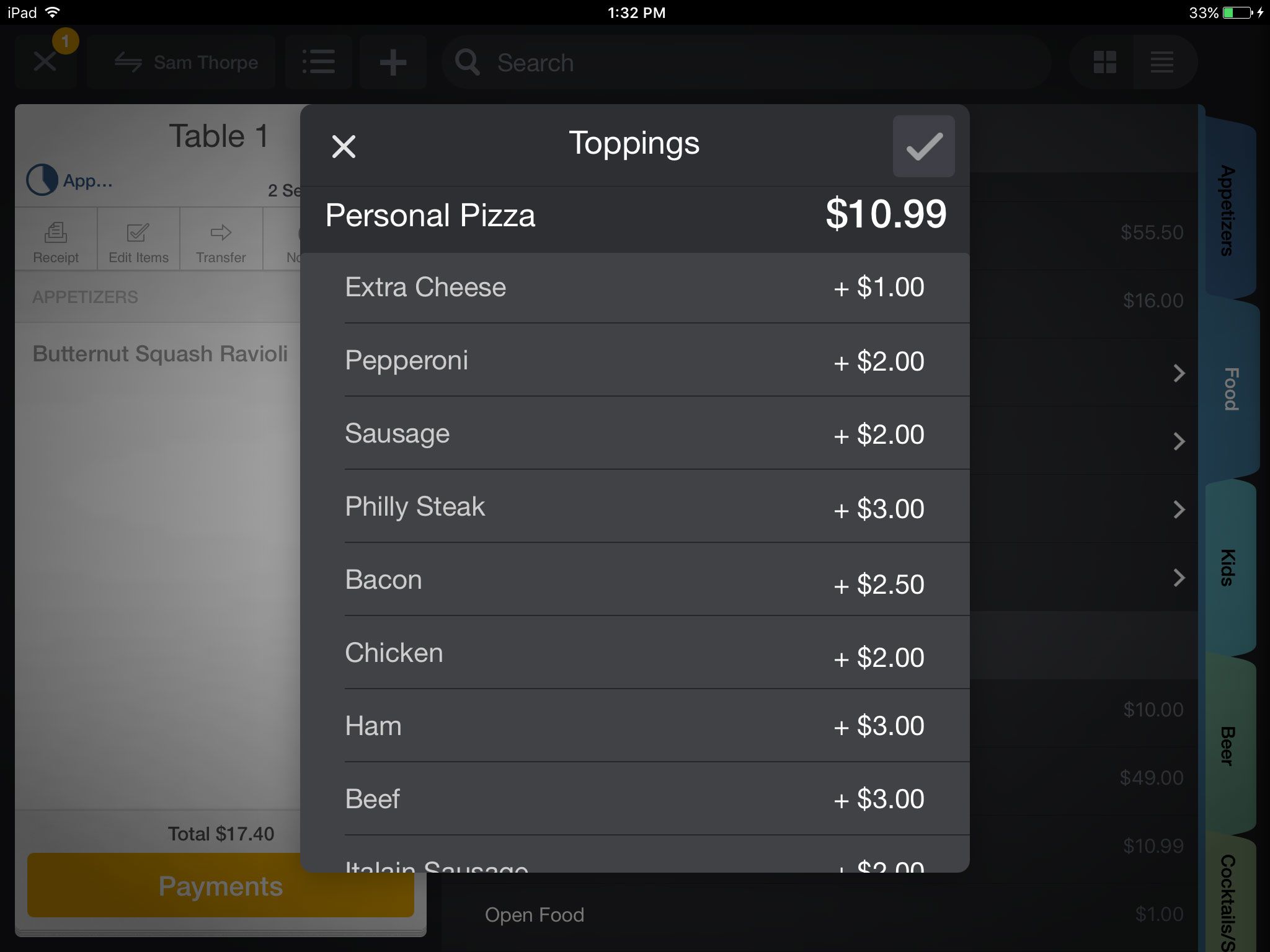
If management chooses to set item notes, those notes will appear when the server rings in that dish. Item notes are a great option for providing information about the dish to the server, or for including suggestions like wine pairings.
Online Ordering
In addition to in-restaurant ordering, Upserve offers online ordering capabilities. The basic ordering site mirrors your menu and allows for customization to match your branding. You can change the font, the pictures, and other aspects of your ordering page.
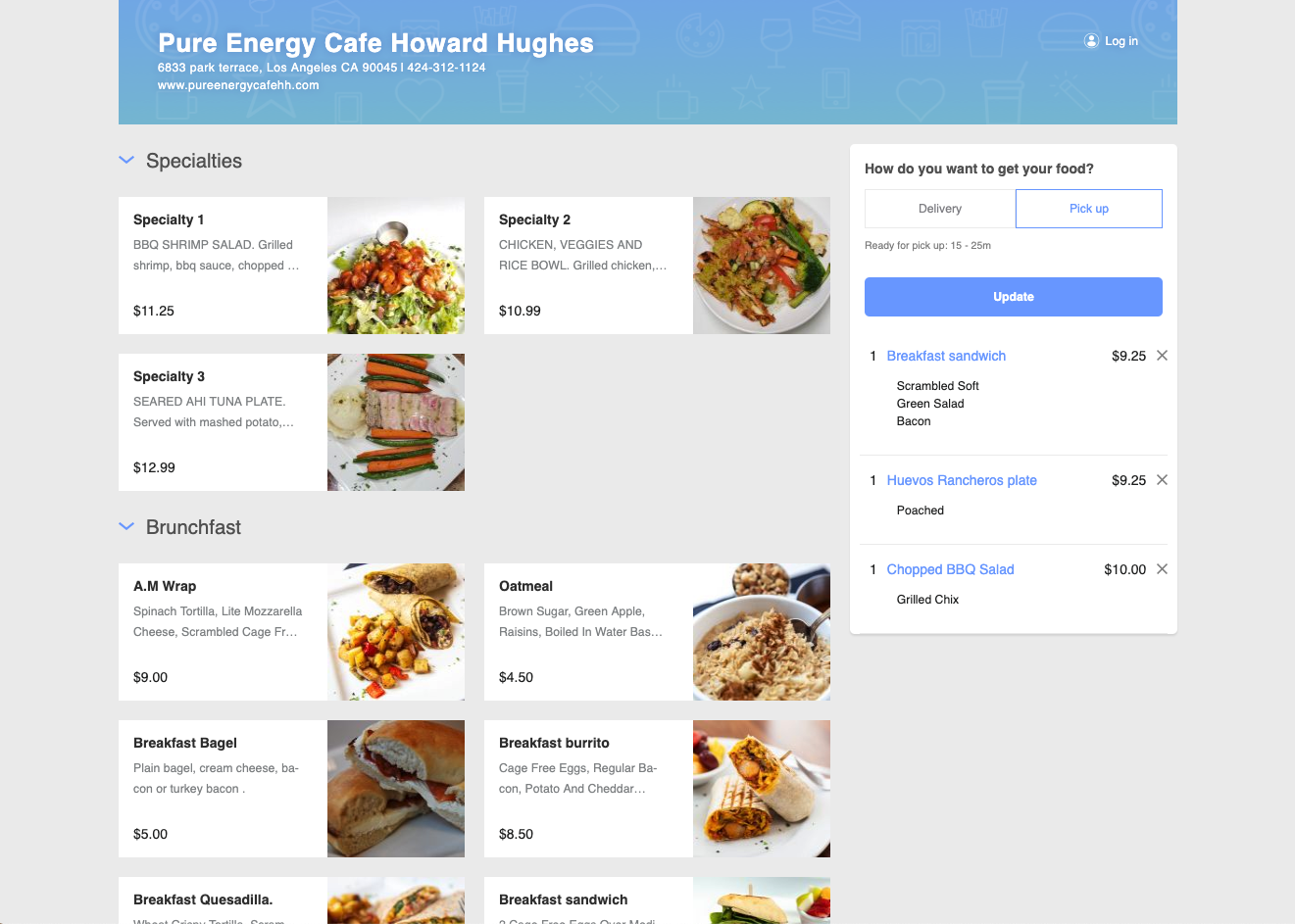
With online to-go orders, managers can choose to manually fire tickets to the kitchen, allowing better control at busy times so all orders don't fire at once.
If you prefer to integrate with online ordering apps (such as Grubhub and DoorDash) you can do that with Upserve as well. Those orders display directly in your POS system, eliminating the need for the extra Grubhub or DoorDash-specific tablets that many restaurants complain clutter their stations and slow down the process.
Customimzable Layouts
Like many POS systems, Upserve offers customizable dining room layouts so you can match the POS layout to your exact real life dining room layout. Even better, it features an easy drag-and-drop function in case tables need to be merged for big parties and then separated again quickly, or if tables are moved for a specific function.
Payments
Every restaurant owner and server knows that these days, diners like to split checks. Upserve makes that easy, allowing you to split checks by diner (called "by position") or by dividing it however many ways the diners would like. If you intend to split by position, you just need to make sure that you're assigning items to the guest position as you ring in the order.
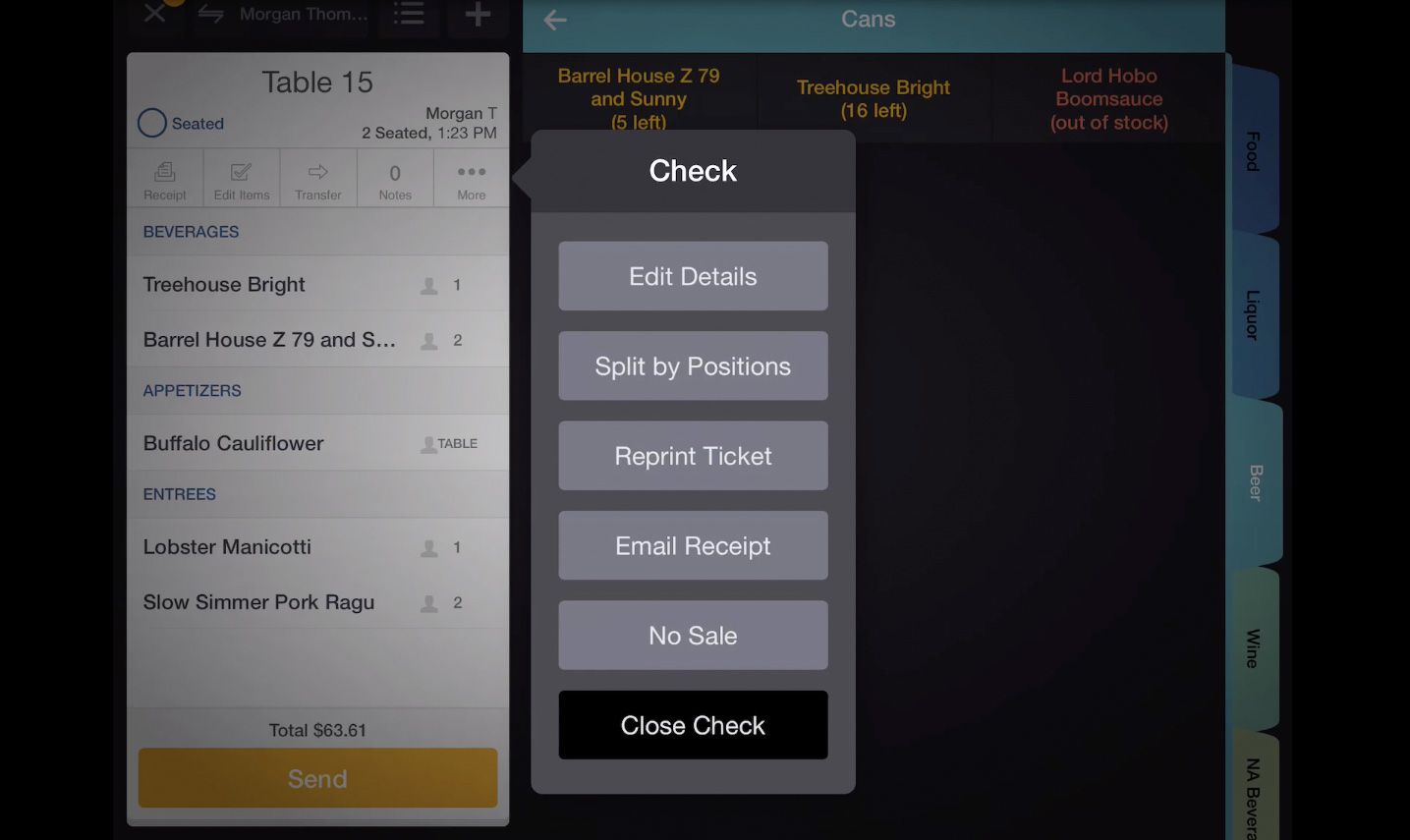
Upserve supports tip adjust, meaning you can adjust check totals to account for tips after the fact. Solutions that do not support tip adjust will not allow you to add tips later.
Staff Communication
Built-in staff communication features make it easy for managers to convey information to anyone that signs in to the POS system. For example, the system displays an "86'd list" so servers can see what's out for the day. That list can be auto-populated by the inventory counts (listing an item as 86'd when the inventory count shows 0) or manually populated by managers. Or perhaps a manager needs to inform staff of a special event or provide a reminder about policies. They can create a note that will display when servers sign on to the system.
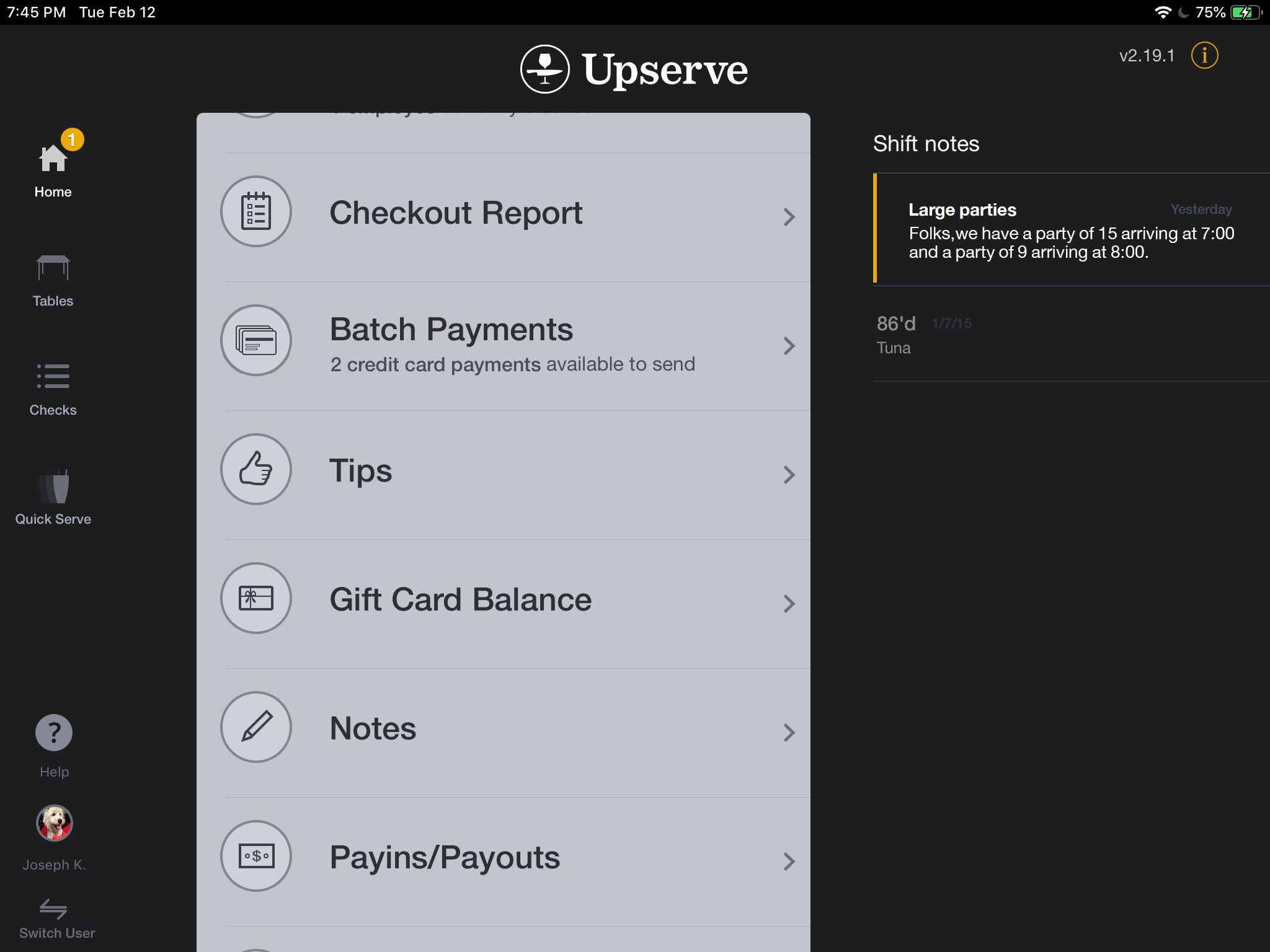
In the screenshot above, you can see the "notes" in the upper right hand corner. In this example, management informs staff of large parties coming in later.
Customer Database and Loyalty Program
The more you know about your customers, the better you can serve them. Upserve’s Guest Book stores profiles of diners’ favorite dishes, allergies, visit history, and upcoming reservations. Additionally, you can reward your customers for coming to your restaurant. With Upserve, you can customize a loyalty program and link it to guests’ credit cards, making it incredibly easy to earn points and perks.
Management Functions
For back office and management functions, you'll use Upserve HQ. From there, you can add or edit menu items, view reports, manage suppliers, and handle employee scheduling. You can access Upserve HQ from any internet-connected device, allowing you to make changes and see important information even when you're not physically at the restaurant.
Inventory
While you can also add or edit items directly from the POS, you may find it more convenient to do so through Upserve HQ. You can set any information about the dish, including a description for your online ordering page, and what name will print on the customer's receipt.
You'll also be able to manage your vendors and place orders. When you set up the POS system, Upserve can work with you to create profiles that include text ordering so that you can simply click a button to place your order. You can also auto-generate purchase orders based on inventory stock levels.
Accurate inventory tracking helps servers as well. The Upserve POS will show the current stock levels so servers are aware when an item is running low and when it's out.
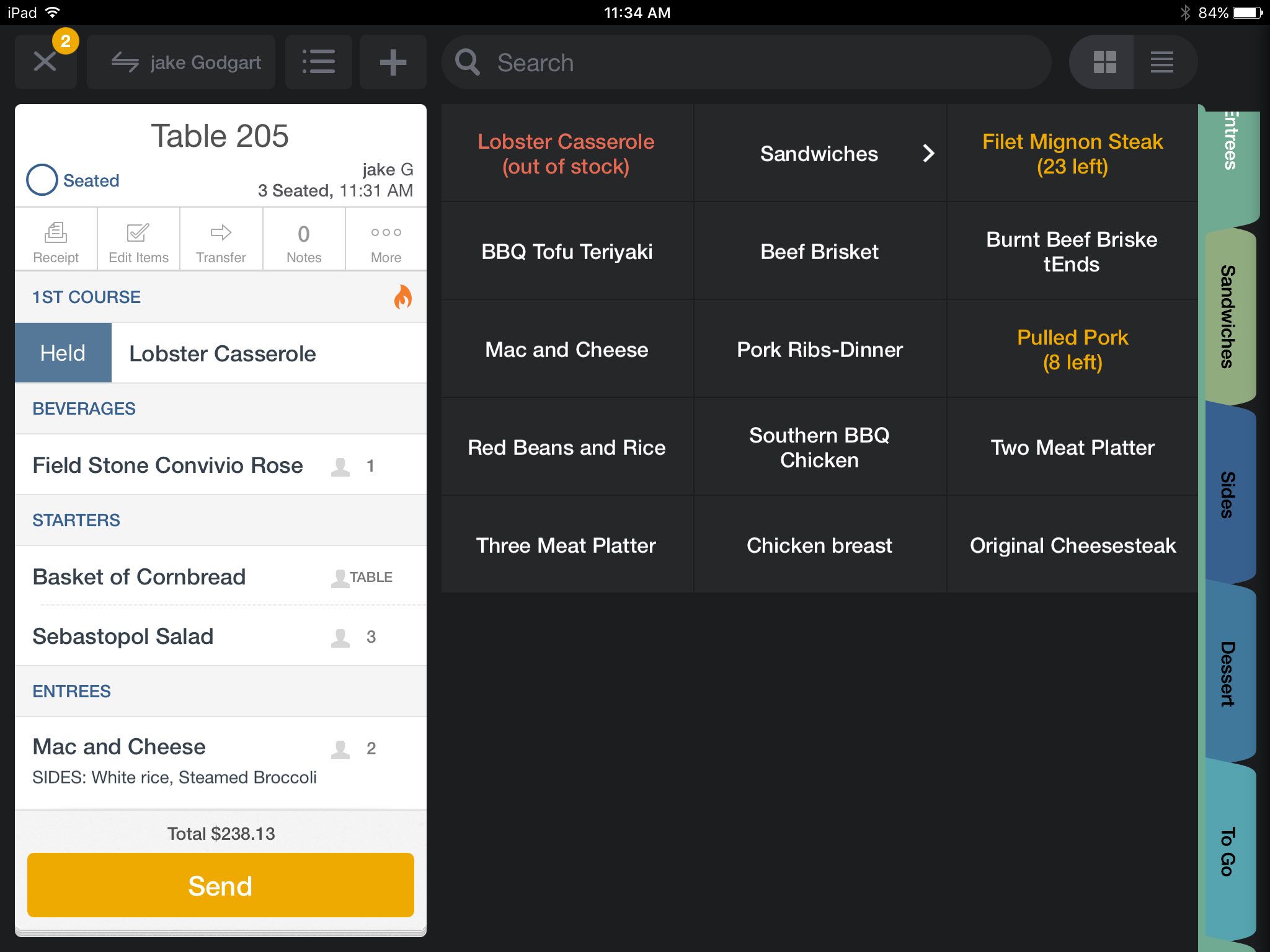
In the screenshot above, the out of stock item is displayed in red with the note that it's out of stock. Dishes with low quantities remaining are displayed in yellow with a count of how many are available.
Reporting
Upserve offers a daily digest that shows you everything that happened during yesterday’s shifts. You can see sales numbers, voids and comps, and server performance. Managers can also view loyalty members – how many have enrolled and how many total visits. You can also customize offers specifically for loyalty members.
The sales analytics feature lets you track, gross, net, or credit card sales by day, month, week, or year. You can look at a single location or multiple locations. Upserve even shows you how tomorrow’s weather report might affect staffing and customers. Or, if you'd prefer to see how you're doing by time of day, you can use the heatmaps to see when you were busiest.
Another handy feature is Upserve's item performance grid. It shows best selling items, worst selling items, items with potential, and items you may want to drop.
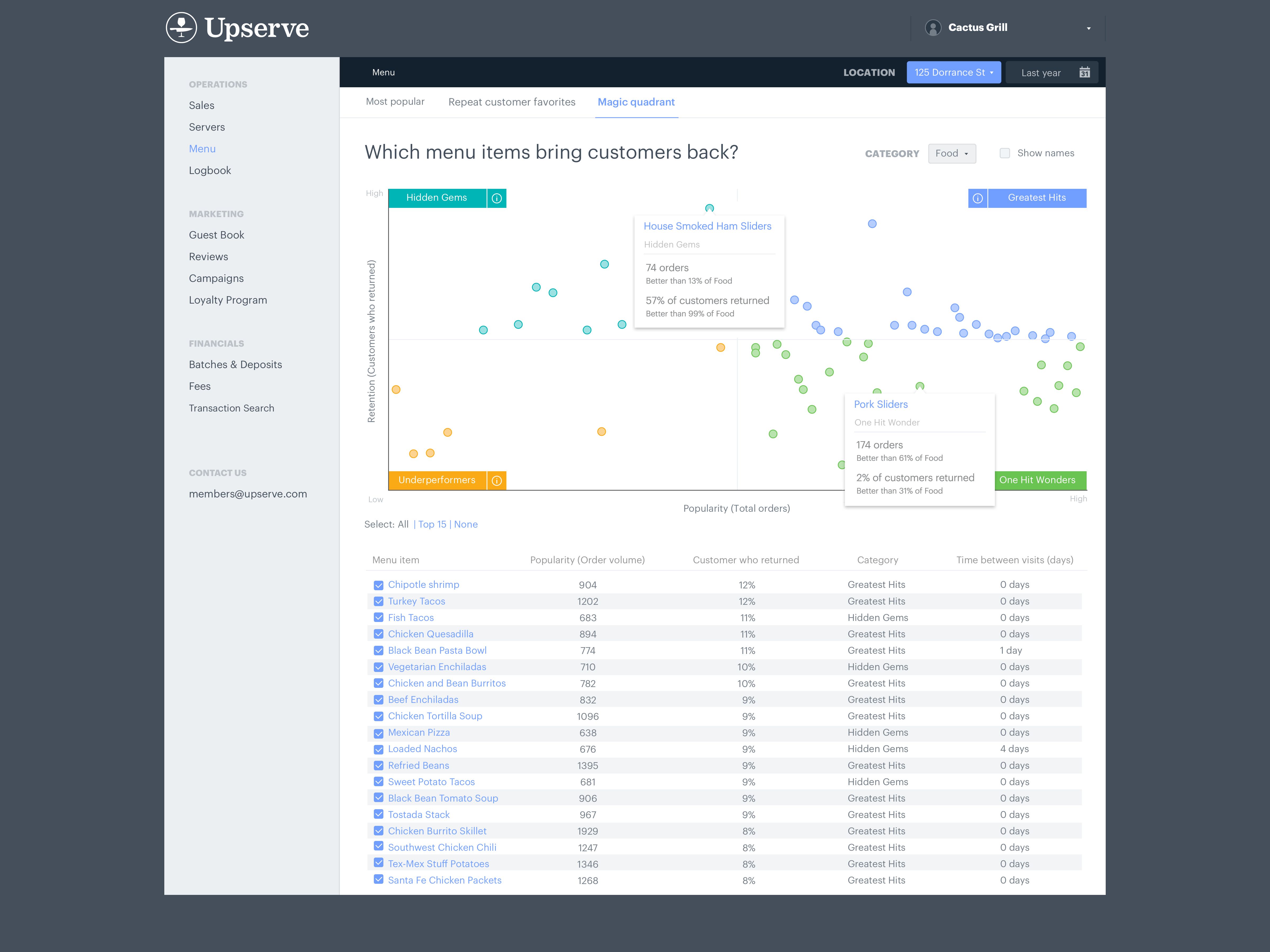
The "Greatest Hits" corner shows items that are ordered a lot and that people come back to order again. By contrast, the "Underperformers" show items that are not ordered a lot, and customers don't order them again. The "One-Hit Wonders" show items that are ordered a lot, but then not ordered again. Lastly, the "Hidden Gems" are dishes that aren't ordered very often, but that bring customers back to order again. This information can help you determine which items to feature and which to consider scrapping.
Employee Scheduling
When it comes to employee scheduling, Upserve makes it easy by allowing you to assign shifts based on employee roles. You can also choose whether to allow employees to clock in a certain number of minutes earlier.
Schedules publish to the staff’s email or text, whatever they prefer. Upserve is also working on building a staff-facing app so they can see the schedule in the app, trade shifts, and request days off, but that app is not available at the time of this publication.
Upserve Pricing for Credit Card Processing
Upserve processes credit card payments on a flat rate model. The standard pricing is 2.49% + $0.15 per transaction. However, Upserve states that it will work with restaurants to figure out an affordable solution.
If you prefer to use a different processor, that’s an option, too. In that case, your pricing will be set by the processor you choose to work with, not by Upserve. However, if you use an external processor, you'll need to pay an Upserve gateway fee of $90/month in addition to the costs your processor charges.
Use this free quote request tool to see what pricing you qualify for from leading processors.
Upserve Pricing
Upserve has three pricing plans: Core, Pro, and Pro Plus. Each plan requires a monthly payment per station at your restaurant.
Core Pricing
Core is $59 per month per location for the first station, and an additional $60/month for additional stations. It provides a basic package to restaurants. It includes the mobile app, a basic customer database, server performance measurement, daily digest reporting, and reputation evaluation. The plan is designed for up to five users with phone and email support for US customers. Core includes remote installation.
Optional add-ons are availalbe at an additional monthly fee to increase the functionality. Add-ons include inventory (at $99/month) and online ordering (at $59/month.)
Pro Pricing
Pro is $199 per month per location, for the first station. It will cost $50/month for each additional station. Pro includes every Core feature. In addition, you’ll be able to use the shift prep function, sales analytics, a customizable guest database, table management integration, void and comp tracking, menu optimization, and a loyalty program. The Pro plan offers 24/7/365 customer support, and an unlimited number of users can utilize it.
Inventory and online ordering are both included with the Pro plan. They are not add-ons like they are with Core.
Pro Plus
Pro Plus costs $359 per month per location for the first register. Additional registers cost $40/month. It includes every Pro feature, custom reporting and a dedicated account manager, called success manager.
The cost of the software is in addition to the costs of purchasing hardware (if needed) and your credit card processing fees. Pricing is accurate at the time of publication, but is subject to change.
Product Features
Universal
POS Systems
- Mobile device management
- Tableside Ordering
- Tableside Payment Processing
- Patron Online Food Ordering
- Gift cards and customer loyalty tracking
- Marketing metrics
- Inventory management
- Sales reports
- Employee tracking & management
- Payroll metrics
- Quickbooks data export
- PayPal acceptance
- Integrated CRM (customer relationship management)
- Windows-based system
- iPad-Based System
- Android-Based System
- Bar Code Scanners
- Card Readers
- Cash Drawers
- Receipt Printers
- Customer Displays
- Kitchen Printers & Monitors
- Checkout Scales
- Portable Receipt Printers
